Microsoft — Phishing Simulation Allowlisting Guide
This guide outlines the four required configurations to ensure phishing simulation emails and training notifications are properly delivered in Microsoft 365. Each configuration must be completed to bypass Microsoft’s layered filtering mechanisms.
📘 4 configurations:
- Allowlist Phishing Simulation Emails in Microsoft 365 (EAC + EOP)
- Allowlist Phishing Domains in Microsoft Defender Safe Links
- Basic Allowed List
- Advanced Delivery Configuration (Phishing Simulation)
1. Allowlist Phishing Simulation Emails in Microsoft 365 (EAC + EOP)
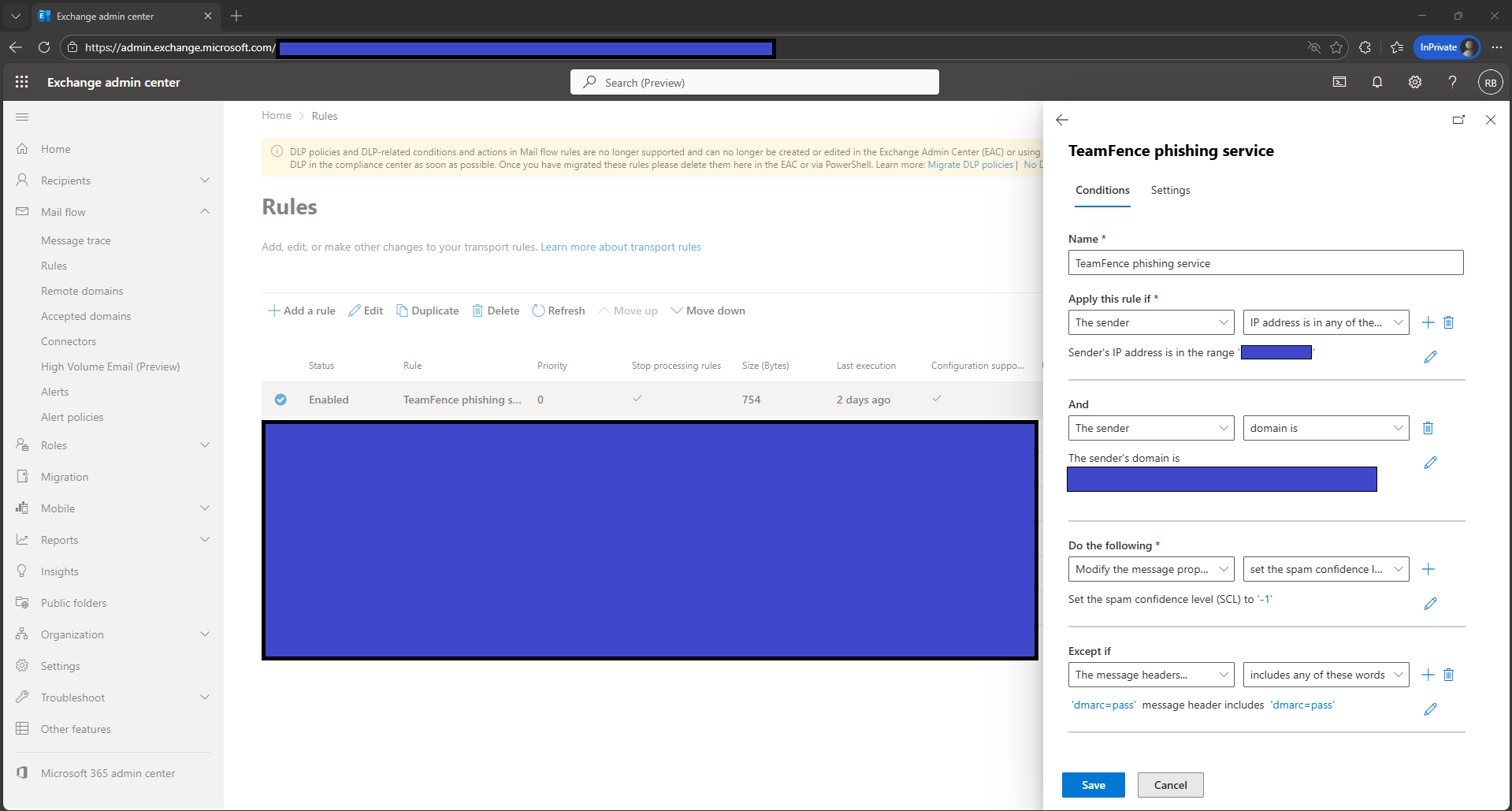
This configuration creates a mail flow rule to ensure phishing simulation emails bypass Microsoft’s spam filtering by assigning an SCL of -1, while using sender IP, sender domain, and authentication results to maintain security.
- Sign in to the Exchange Admin Center at
https://admin.exchange.microsoft.com/ - Select Mail flow → Rules → Add a rule.
- Name the rule:
Allowlist Phishing Simulation – Bypass Spam-
Under Apply this rule if…, configure:
- The sender → IP address is in any of these ranges or exactly matches
Add all phishing simulation sending IPs. - The sender → domain is
Add all domains used by the phishing simulator.
- The sender → IP address is in any of these ranges or exactly matches
-
Under Do the following…, select:
Modify the message properties → Set the spam confidence level (SCL)
Set the value to:
-1- Under Except if…, configure:
- The message headers → includes any of these words
Header name:Authentication-Results
Value contains:dmarc=pass
- The message headers → includes any of these words
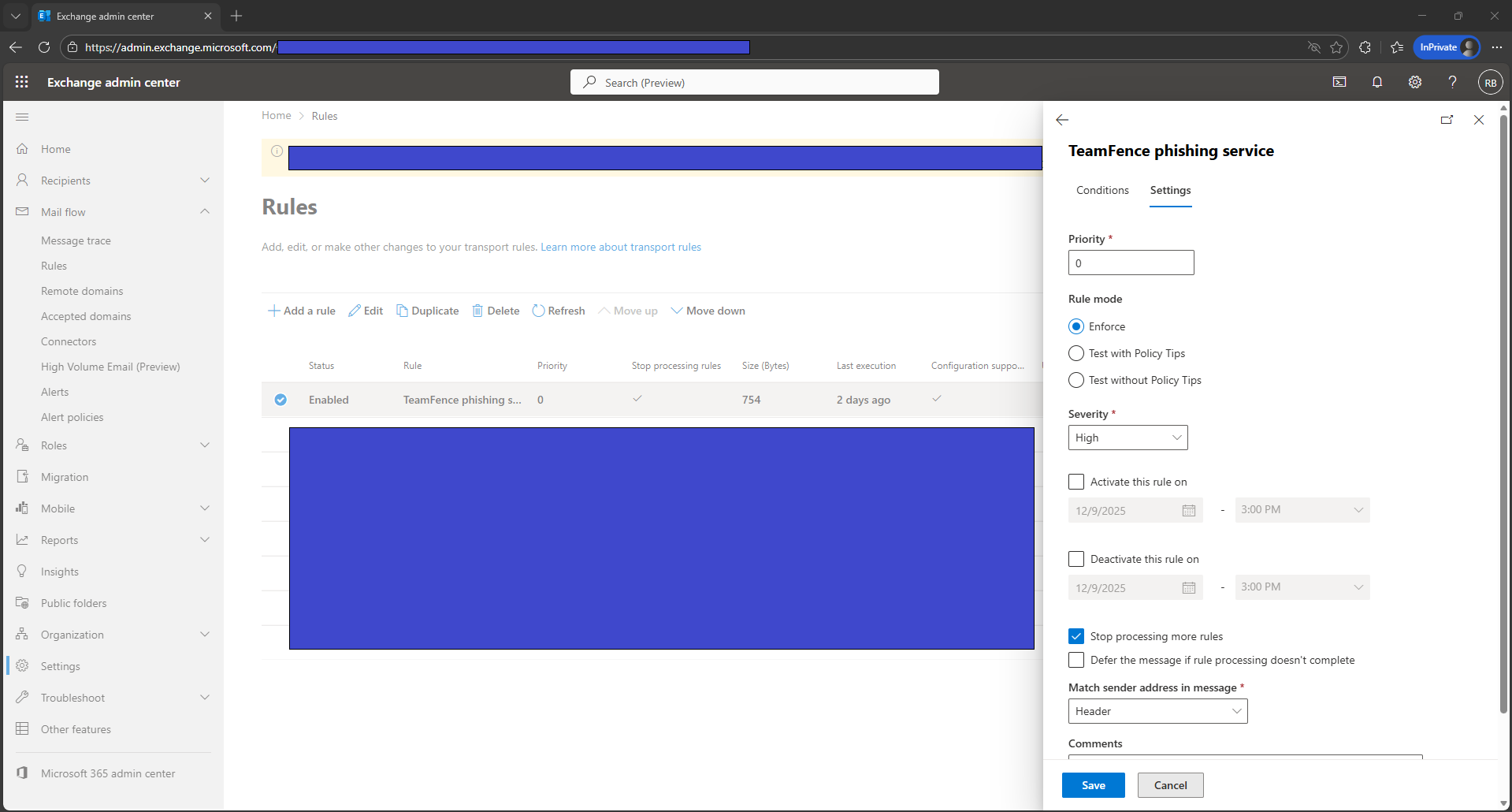
- Scroll to Settings and configure:
- Priority:
0 - Mode: Enforce
- Severity: High
- Stop processing more rules: Enabled
- Match sender address in message: Header
- Priority:
- Select Save to apply the configuration.
2. Allowlist Phishing Domains in Microsoft Defender Safe Links
This configuration prevents Microsoft Defender Safe Links from rewriting phishing simulation URLs, ensuring simulation links operate correctly during training campaigns. A fallback method using a mail flow rule is also included for environments where Safe Links cannot be edited.
- Sign in to the Microsoft Defender portal at
https://security.microsoft.com/ - Select Email & collaboration → Policies & rules → Threat policies.
- Under Policies, select Safe Links.
- Select the policy that applies to your users.
- Select Edit protection settings or Manage policy.
- Locate the section titled:
Do not rewrite the following URLs in email- Add the phishing simulation domains to the list.
- Select Save and allow time for propagation.
3. Basic Allowed List
This configuration adjusts the default Anti-Spam policy to ensure phishing simulation domains and SAT notification domains are permitted by Microsoft’s standard filtering layers.
- Sign in to the Microsoft 365 Defender portal at
https://security.microsoft.com/ - Select Email & Collaboration.
- Select Policies & rules.
- Select Threat policies.
- Under Policies, select Anti-spam.
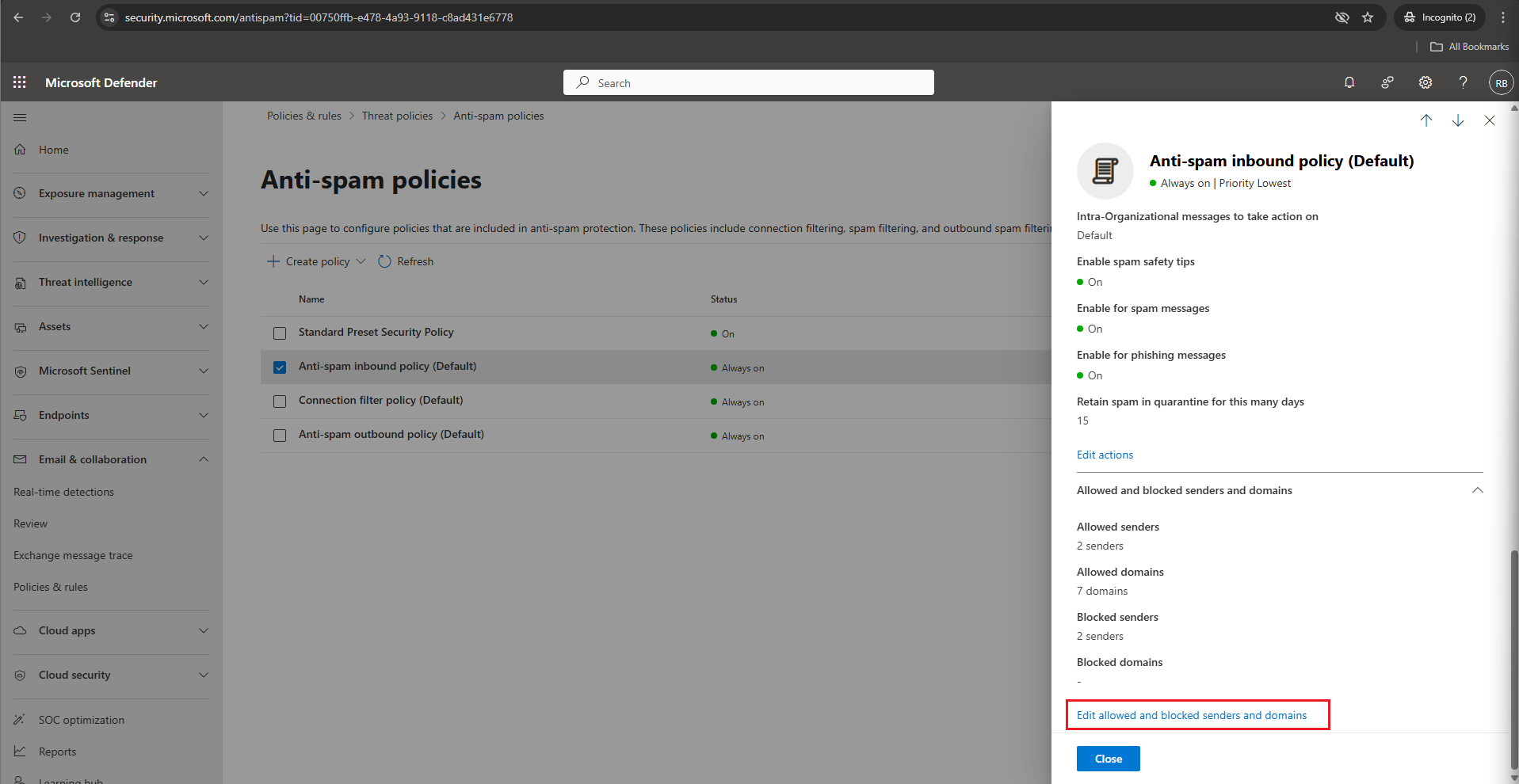
- Select Anti-spam inbound policy (Default).
- Scroll down to Allowed and blocked senders and domains and select
Edit allowed and blocked senders and domains.
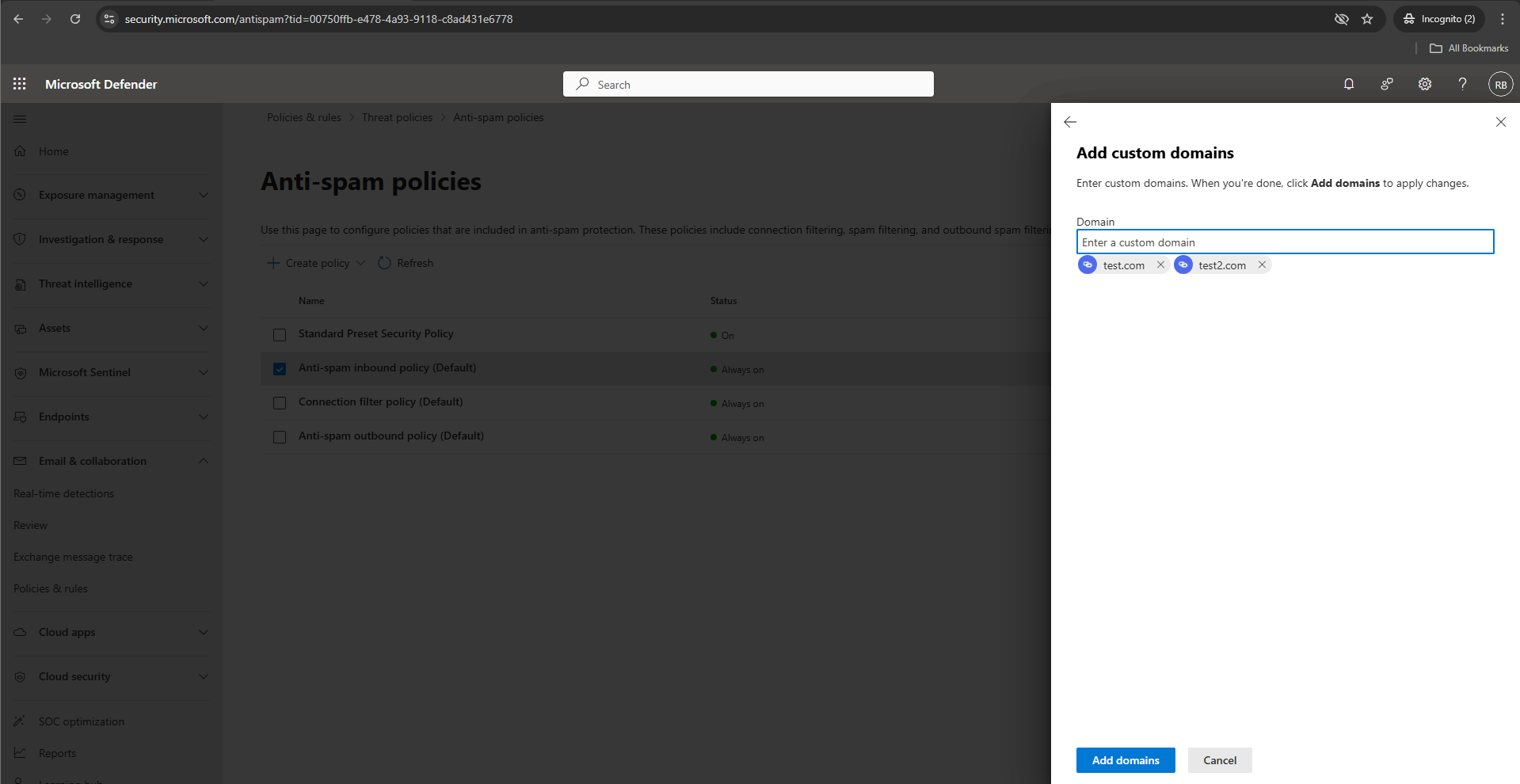
- Under Allowed, select Allowed domains.
- Select + Add domains and add domains one at a time.
- Select Add domains to confirm.
- Select Done.
- Select Save.
4. Advanced Delivery Configuration (Phishing Simulation)
This configuration defines the phishing simulation domains and IP addresses used by your simulation platform, enabling Microsoft’s Advanced Delivery system to bypass high-confidence spam, high-confidence phishing, and content filtering.
- Sign in to the Microsoft 365 Defender portal at
https://security.microsoft.com/ - Select Email & Collaboration → Policies & rules → Threat policies.
- Scroll down to the Rules section and select Advanced delivery.
- Select the Phishing Simulation tab and then select Edit.
- Under Sending Domain, add the phishing simulation domains one at a time
(Microsoft allows up to 30 domains). - Under Sending IP, add the phishing simulation server IPs.
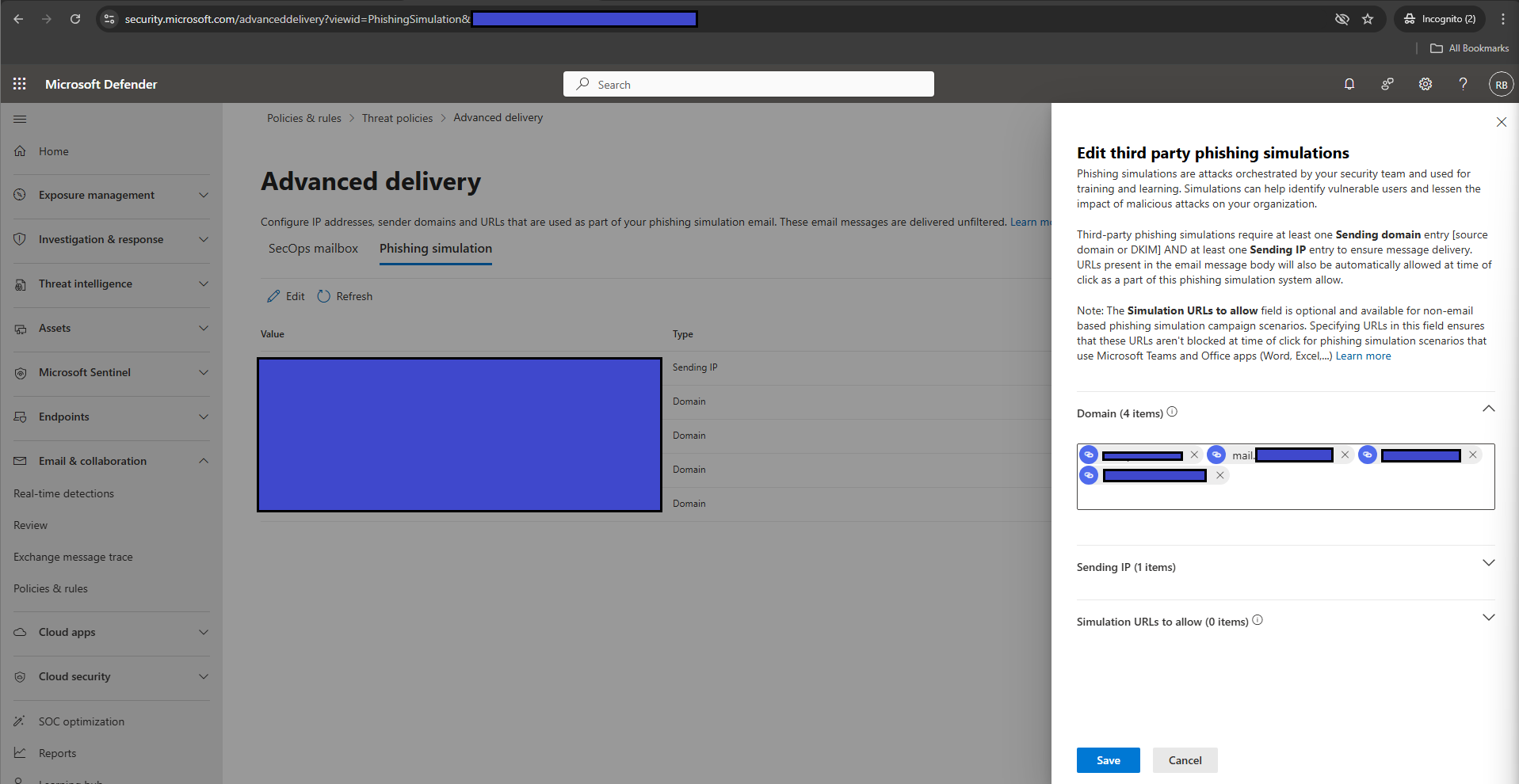
- Select Save to apply your changes.