Allow phishing environment in Google Workspace (G-Suite)
To ensure phishing simulations run smoothly, you may need to whitelist TeamFence domains in your email and network security systems.
This prevents phishing training emails from being flagged or blocked by spam filters, firewalls, or security gateways.
Steps
-
Sign in to the Admin Console
Go to admin.google.com and sign in with an administrator account. -
Open Gmail settings
- In the left-hand menu, navigate to: Apps → Google Workspace → Gmail
- Click Spam, Phishing, and Malware
-
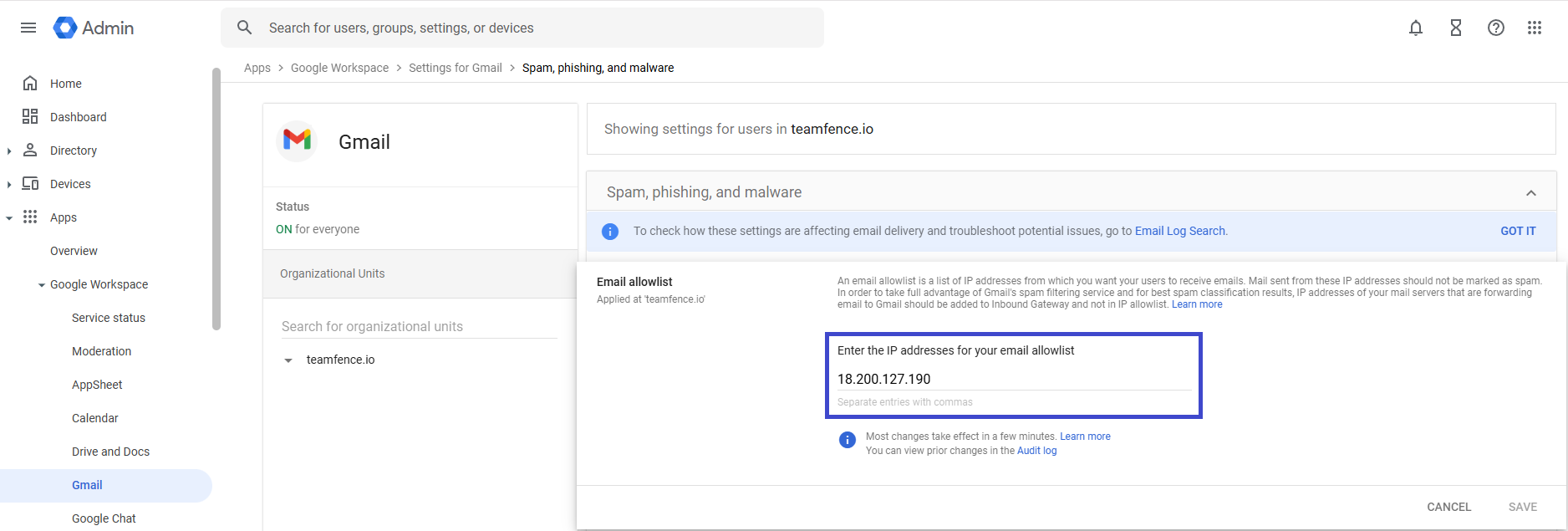
Add TeamFence’s IPs
In the Email allowlist add the following IPs:- 18.200.127.190
- Add anti-spam rule
- Find the Spam section and click on CONFIGURE
- Give a name to the rule (e.g. TeamFence phishing rule)
- Enable Bypass spam filters for messages from senders or domains in selected lists. and click on Create or edit list
- Click now on ADD ADDRESS LIST and add the following domain:
- mail.live-logins.com
- […]
- [find the other domains in the Fency platform]
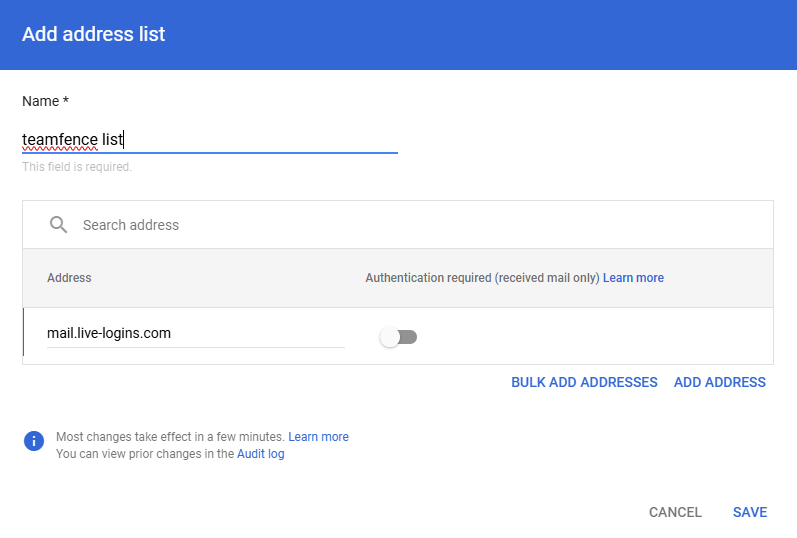
- Click on SAVE
- Go back to Bypass spam filters for messages from senders or domains in selected lists and click on Use existing list and select the created list
- Enable Bypass spam filters and hide warnings for messages from senders or domains in selected lists and click on Use existing list and select the created list
- Click on SAVE

- Check your config