Microsoft
Install Fency via Microsoft Intune (Endpoint Manager)
If your organisation uses Microsoft 365, you can deploy the Fency extension with Microsoft Intune (Endpoint Manager).
This method allows you to force install the extension for selected users or devices, so it’s installed automatically without user action.
Steps
-
Sign in to Endpoint Manager
Go to the Microsoft Endpoint Manager admin center with an administrator account. -
Create a new policy
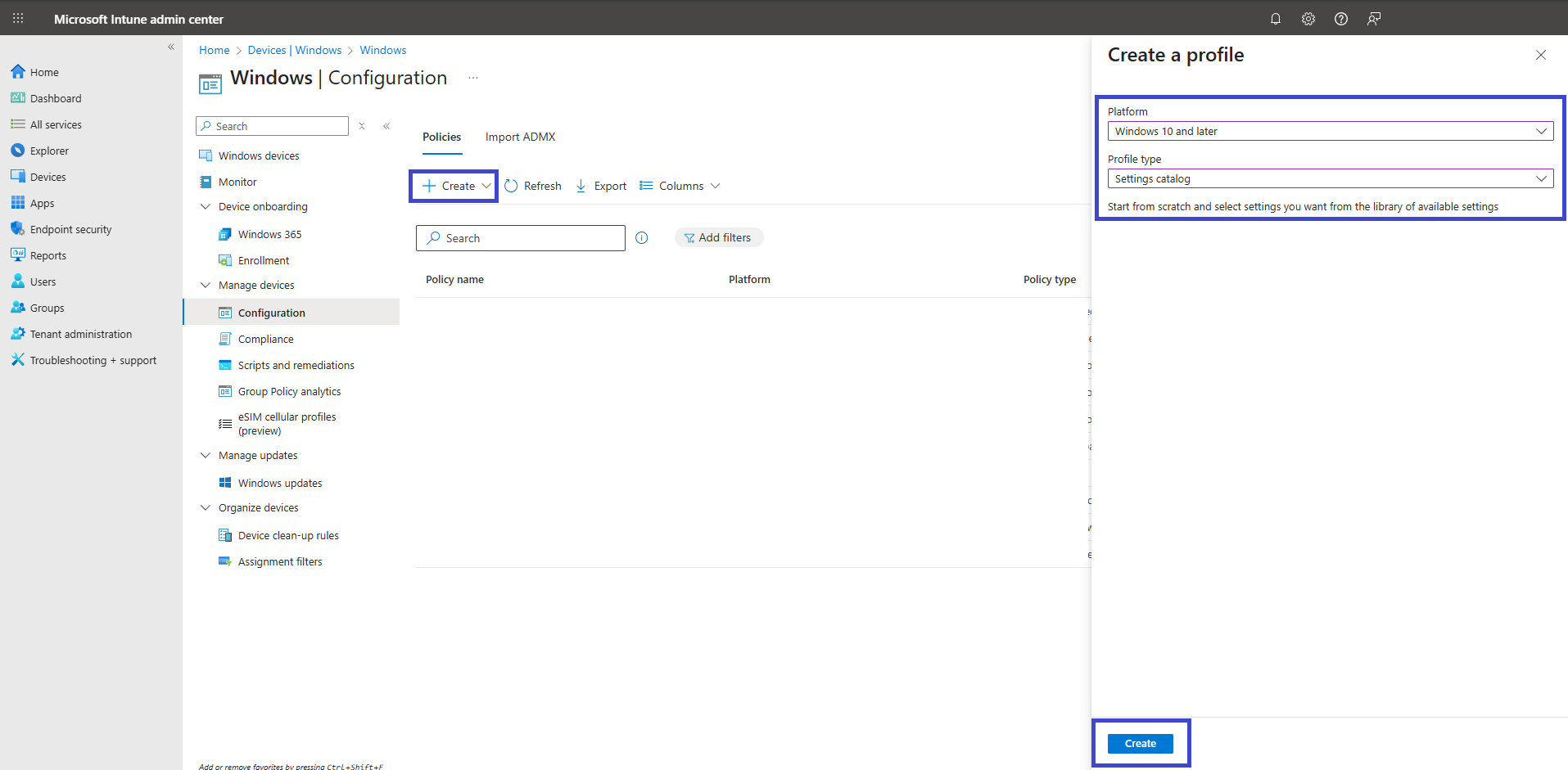
- Navigate to: Devices → Windows → Configuration
- Click Create → New policy
-
Choose platform and profile type
- Platform: Windows 10 and later
- Profile type: Settings catalog
- Click Create
-
Fill in basics
- Give your profile a clear Name (e.g. Fency Extension Deployment)
- Optionally add a Description
- Click Next
-
Configure settings
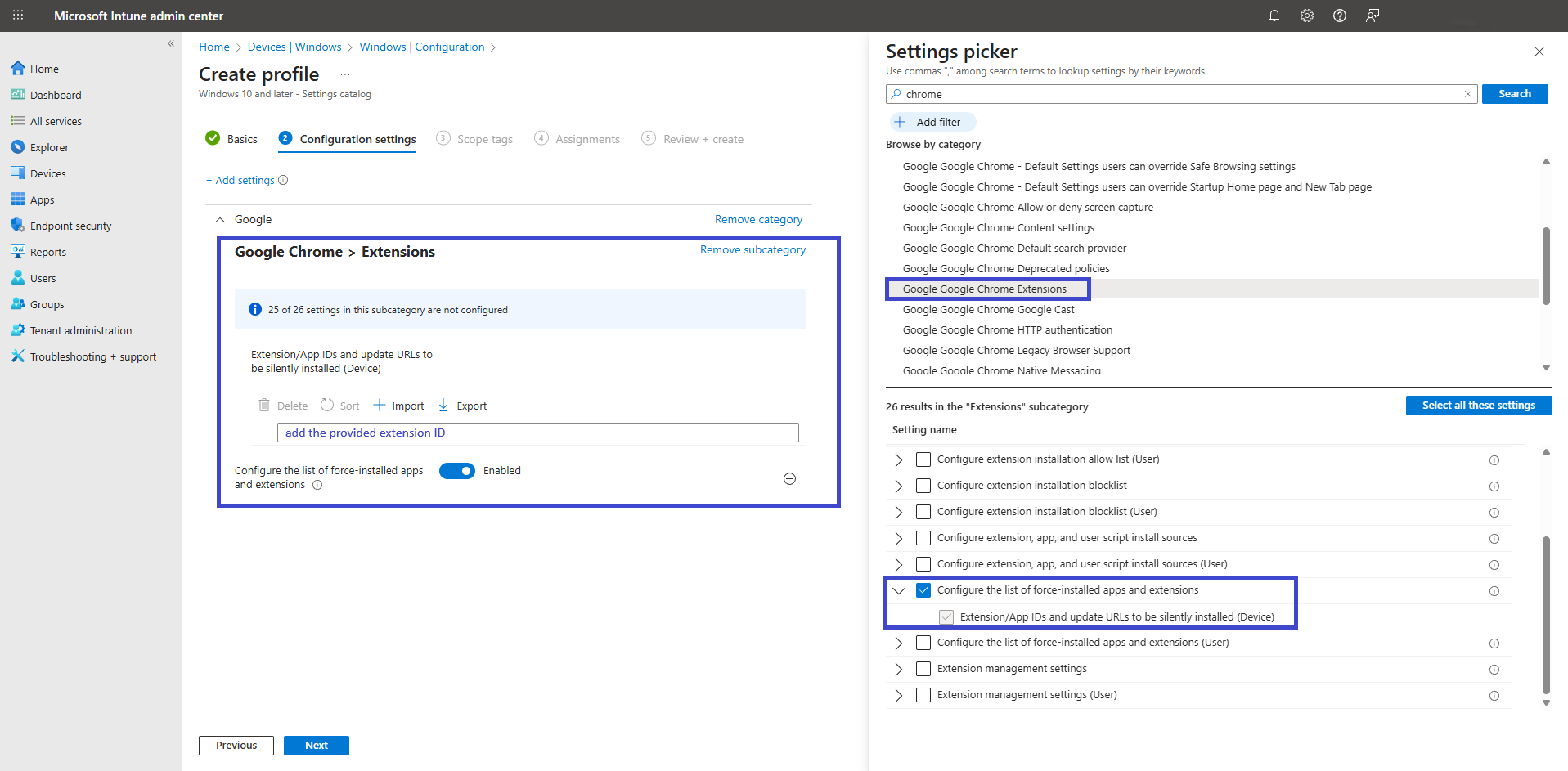
- On the Configuration settings screen, click Add settings
- In the Settings picker, search for your browser (e.g. “Chrome” or “Edge”)
- Expand the relevant Extensions category (e.g. Google Chrome Extensions or Microsoft Edge Extensions)
- Enable Configure the list of force-installed apps and extensions
-
Enter Fency extension details
Add the Extension ID and Update URL in the format:
- On the next page, leave the Scope tags as Default. If you have any custom scope tags available, you can also select those for this deployment.
- Click Next and assign the configured policy to the desired group.
- Review and create
Please take a moment to carefully review all the settings you’ve defined for the “Install Google Chrome Extensions” policy on the “Review + Create” page. When you’re ready, select Create to implement the changes.